Setup Wizard
The setup wizard is Embody's onboarding surface. It opens the first time you drop the Embody .tox into a project and walks you through the choices that matter — how much autonomy Embody gets, what to externalize, whether to turn on the AI assistant (Envoy), whether to join the trusted-LAN Convoy, and where config files are written — one decision per screen.
Nothing changes until the final click. Every screen up to the summary only records a selection; the summary itself says so, and only the Set up Embody button applies anything. Closing the wizard early (Not now on the first screen, or closing the window) leaves your project completely untouched.
When it opens
- First run — after you drag the Embody
.toxinto a project and initialization finishes. On an upgrade, it waits until any verification dialogs have resolved, and it only appears if Envoy isn't already enabled. It never opens during a project save or a test run. - Re-run anytime — pulse Setup Wizard (
Setupwizard) on the Embody parameter page. The wizard reopens preset to your current settings, so you can review or change any choice without starting over.
The steps
The wizard adapts to your answers. Conditional screens appear only when they apply, and the progress bar always reflects the current path.
1. Save your project (only when the project has never been saved)
Everything the wizard sets up — the Python environment (.venv), AI config, .embody state, the optional git repository — lands relative to your project's folder, and a never-saved project has no folder yet. So on an unsaved project this step comes before all others: Save the project now… opens the standard save dialog, and Next stays locked until the project is on disk. Saving here also lets the later steps (git, externalization) probe your project's real location. On a project that has ever been saved, this step never appears.
2. Mode — how Embody manages your project
| Option | Meaning |
|---|---|
| Auto (recommended) | Embody manages everything on its own — git housekeeping, the Python environment, config files. |
| Advanced | Embody asks before touching git, your Python env, config files, or your network. Full control, minimal surprise. |
Sets the Mode (Embodymode) parameter. The choice also governs how Embody handles later invasive actions (a startup repair, InitGit() / InitEnvoy()), not just this setup pass.
3. Externalization (only when the project still has work to externalize)
| Option | Meaning |
|---|---|
| New work only (recommended) | Turns on auto-externalization for new COMPs and DATs. Nothing in the existing project is rewritten during setup. |
| Externalize everything | Turns on auto-externalization and, after setup, offers the separately confirmed whole-project externalization flow. A saved .toe is required as a recovery point. |
| Skip for now | Leaves externalization settings and the existing project unchanged. |
This step is skipped when the project already looks externalized. The whole-project choice keeps its own confirmation and format choice because it can touch many operators.
4. AI assistant — turn on Envoy?
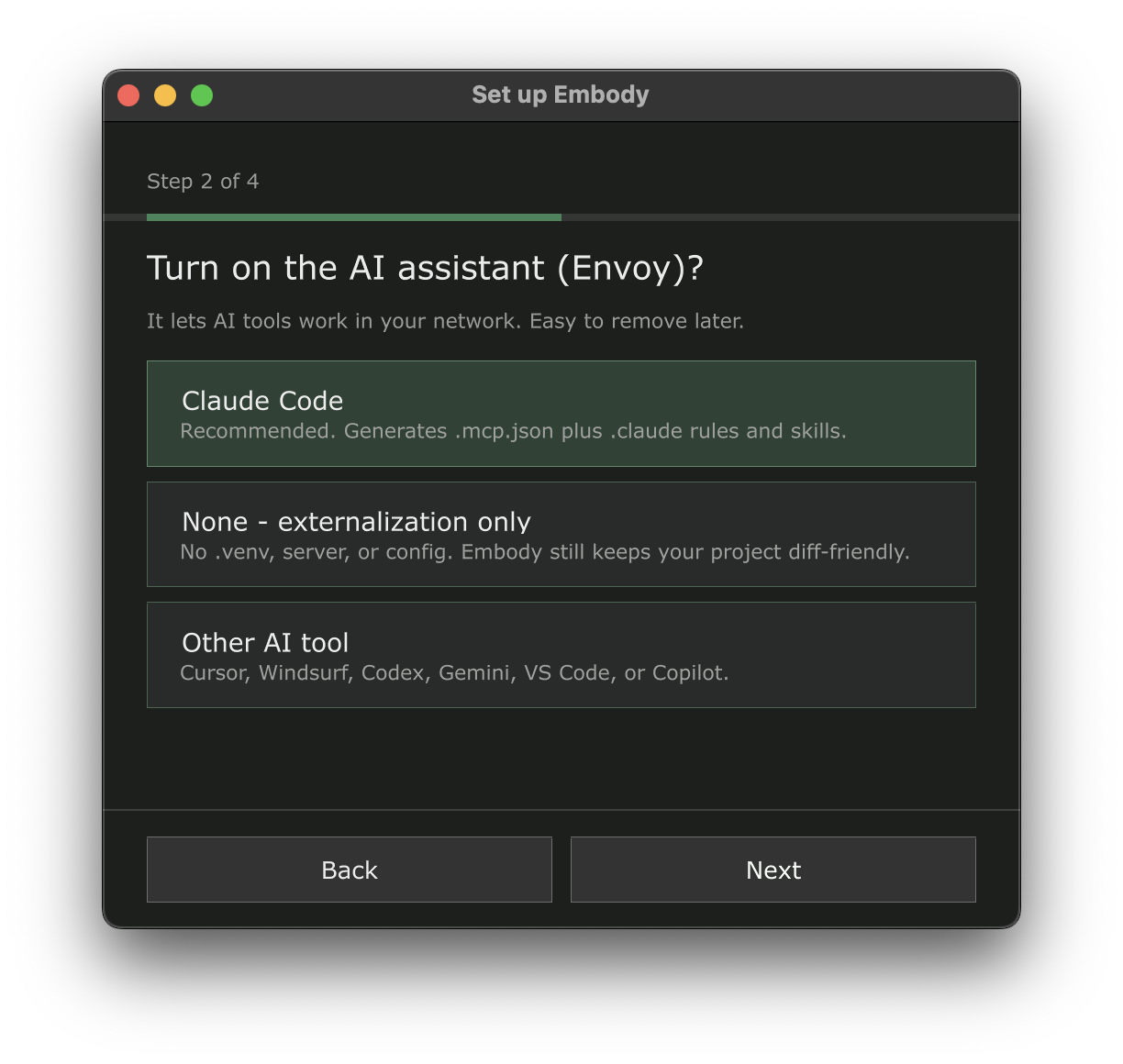
| Option | Meaning |
|---|---|
| Claude Code (recommended) | Generates .mcp.json plus .claude/ rules, skills, and slash commands — the fully auto-configured path. |
| Other AI tool | OpenCode, Cursor, Windsurf, Codex, Gemini, VS Code, or GitHub Copilot. |
| None — no AI assistant | Generates no AI-client config and launches no coding tool. If you enable Convoy in the next step, Embody still creates .venv and runs the internal local command service Convoy needs. With Convoy off, Envoy stays off. |
Envoy is easy to remove later — see Removing Embody.
5. Pick your AI tool (only when "Other AI tool" is selected)
Choose which client Embody generates config for: OpenCode (opencode.json plus shared .claude/ rules and skills — see Local Models & Open Clients), Codex (.codex/config.toml), Cursor (.cursor/), Gemini (GEMINI.md + .gemini/settings.json), VS Code (.vscode/mcp.json), GitHub Copilot (.github/), or Windsurf (.windsurf/). Sets both the Configure For (Configclient) and Launch Client (Aiclient) parameters to your choice. Antigravity is supported but is not yet offered by the wizard -- select it in Configure For on the Envoy parameter page. AGENTS.md is always written regardless of the client. To serve more than one client from the same project, select the others in Configure For afterwards -- generation is additive, so each one you pick stays configured.
6. Permissions — how the AI asks (Claude Code only)
By default, Claude Code prompts before every MCP tool call. This step chooses how much Embody pre-approves in .claude/settings.local.json:
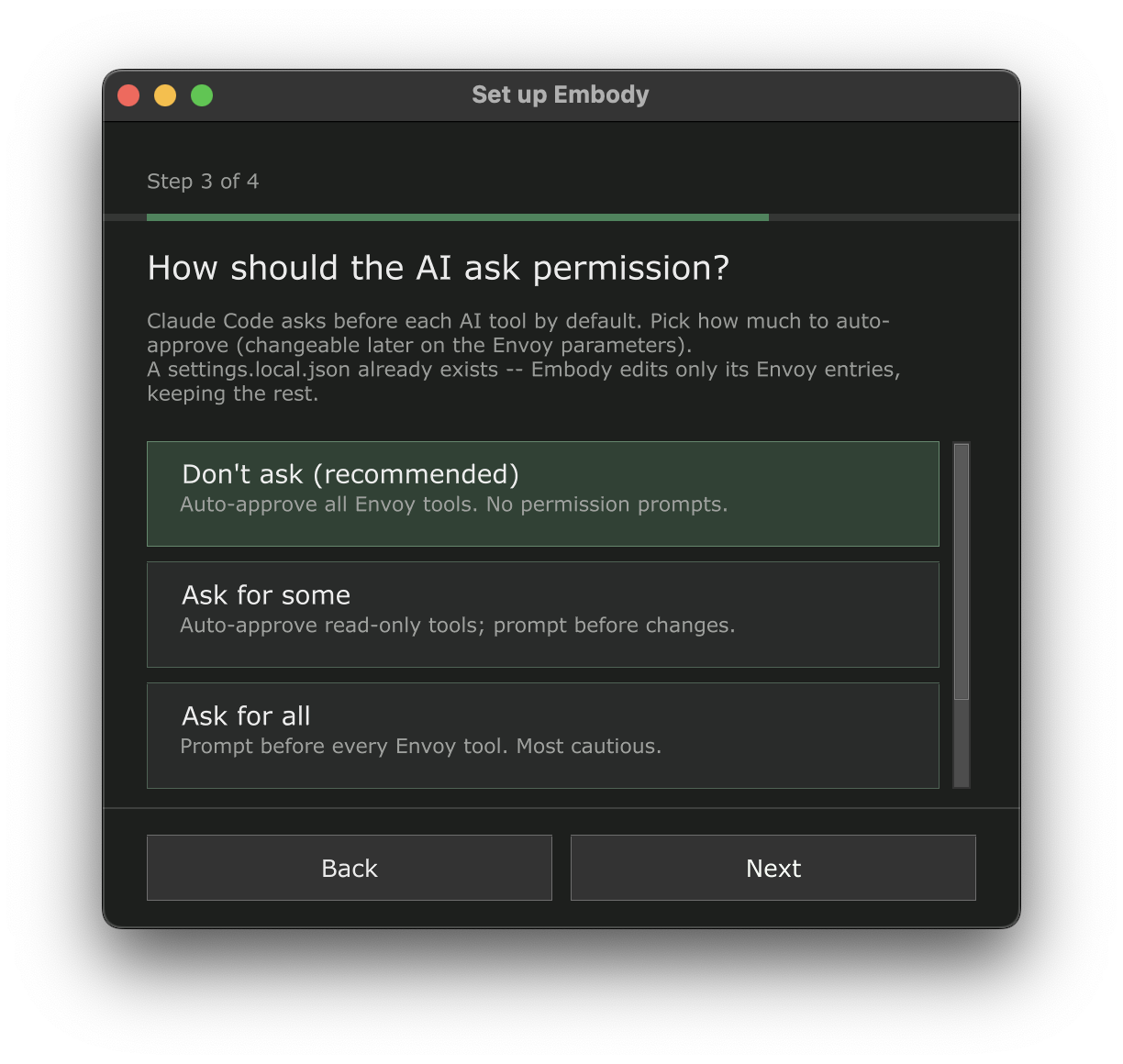
| Choice | Effect |
|---|---|
| Don't ask (recommended) | Auto-approves all Envoy tools — no permission prompts, and new tools are covered automatically. |
| Ask for some | Auto-approves read-only tools; anything that creates, edits, deletes, or executes still prompts. |
| Ask for all | Pre-approves nothing — Claude Code prompts before every Envoy tool. Most cautious. |
| Leave settings alone | Embody never creates or modifies settings.local.json — you manage permissions yourself. |
Sets the Tool Permissions (Toolpermissions) parameter, which you can change anytime without re-running the wizard. If a settings.local.json already exists, Embody edits only its Envoy entries and keeps everything else you've set — the wizard tells you so on this screen. See MCP Tool Permissions for the full details.
7. Convoy — join other Embody nodes?
| Option | Meaning |
|---|---|
| Enable Convoy | Lets this Embody node discover, inspect, and control other Convoy-enabled siblings on the same trusted LAN, and lets those siblings address this node. |
| Keep Convoy Off | Leaves the node disconnected. You can enable it later on the Convoy parameter page. |
This choice sets Enable Convoy (Convoyenable). It is both the membership and exposure gate: there is no separate Create, Join, invitation, or “Expose This Node” step. Discovery and reconnect are automatic.
Convoy is independent of the AI-assistant choice. If you selected None and enable Convoy, Embody starts only Envoy's internal loopback command service so siblings can execute registered TouchDesigner operations. It does not generate .mcp.json or AI rules, connect an MCP client, or launch a coding tool.
Only enable Convoy on a LAN you trust. Enabling Convoy -- from the wizard or the parameter page -- also installs and starts the small per-user Convoy host app; the wizard's Convoy step is the consent for that install (the app runs at login, whether or not TouchDesigner is open), so no second prompt appears. Convoy identifies a node by its saved project folder, so it cannot enable on a never-saved project — in the wizard this is guaranteed by the save step; when enabling from the parameter page instead, the Convoy Status reads Waiting for project save until you save. Allow Execute TD Python and Allow Full Shell remain off unless you enable them locally later. See the Convoy guide.
8. Git — make this project a repository? (only when no repo was found)
If the wizard finds no git repository above your project folder, it asks — this is your decision, not something Embody does silently:
| Option | Meaning |
|---|---|
| Initialize Git (recommended) | Creates a repo at the project root when you finish the wizard, then adds Embody's .gitignore / .gitattributes entries. Externalized files diff, branch, and restore best under version control. |
| Skip for now | No repo is created and no git files are touched. Everything else still works; add git anytime later with op.Embody.InitGit(). |
If a repo already exists, this screen never appears — and when an assistant is enabled, Embody adds its entries to your existing .gitignore / .gitattributes as part of setup. With no assistant, nothing is written automatically unless you initialize Git in this step; run op.Embody.InitGit() later to add Embody's git entries. The step is shown for every assistant choice, including "None": version control is the point of externalizing.
9. Footprint review (Advanced mode only)
In Advanced mode, this screen appears when an assistant is selected or Convoy-only mode needs its internal runtime. It discloses everything it is about to add before you confirm. Convoy-only setup lists .venv, the internal command service, and .embody runtime state; it does not claim that AI-client files will be generated.
- A Python environment (
.venv) and the internal Envoy command server when an assistant or Convoy needs them - The
.embody/state folder - AI-client files such as
.mcp.jsonand client rules only when an assistant is selected - Git integration and the Embot assistant only when their selected setup path uses them
Everything is recorded and reversible via Uninstall. This screen also chooses where config files are written:
| Option | Meaning |
|---|---|
| Git root (recommended) | Config lives at the top of the git repository — right when the whole repo is your AI tool's workspace. |
| Project folder | Config lives next to the .toe — use when the .toe sits in a subfolder you open as your workspace. |
| Custom folder | A folder picker opens when you finish the wizard. |
Sets the AI Project Root (Aiprojectroot) parameter. In Auto mode this screen is skipped and the git-root default is used — you can change it later; see Configuration — AI Project Root.
10. Summary
A recap of your mode, externalization, assistant, Convoy, and (when asked) git choices, with the reminder that nothing has changed yet. Set up Embody applies it all.
What "Set up Embody" does
Most choices apply in one pass after the final click. Externalize everything is the deliberate exception: it opens its own whole-project confirmation and format choice before changing existing operators.
- Persists your choices to the corresponding parameters (Mode, Configure For and Launch Client, Tool Permissions, AI Project Root, auto-externalization, and Convoy when those steps were shown).
- Applies your git choice. If you chose Initialize Git, the repo is created first (with Embody's
.gitignore/.gitattributesentries), so config lands inside it. If you chose Skip for now — or a repo already existed — config files are generated either way; a failed or skipped init never blocks setup, andop.Embody.InitGit()adds git integration later. - Applies the externalization choice. New-work mode changes only the auto-externalization preference. Whole-project mode opens its own confirmation and format choice after setup; it never silently rewrites the project.
- If you chose None with Convoy off: Envoy stays off and you're set up for externalization only.
- If you chose None with Convoy enabled: Embody enables only Envoy's internal loopback command substrate. Dependencies install in a background thread, but no AI client is configured or launched.
- If you chose an assistant: AI config files are generated, the MCP server starts on the configured port, and dependencies install in a background thread — TouchDesigner stays responsive. The independent Convoy choice is applied either way; enabling Convoy here also installs and starts its per-user host app (consented at the Convoy step). See Envoy Setup and Convoy Setup.
- On a re-run with Envoy already running, the command server restarts so a new port, root, or client takes effect. AI config is regenerated only when an AI client is selected.
Changing your mind later
Every wizard choice maps to a parameter you can change directly, no wizard required:
| Wizard step | Parameter | Page |
|---|---|---|
| Mode | Mode (Embodymode) |
Embody |
| Externalization | Auto-Externalize New Ops (Autoexternalize) or the manual project externalization action |
Embody |
| AI assistant on/off | Envoy Enable (Envoyenable) |
Envoy |
| AI tool | Configure For (Configclient) + Launch Client (Aiclient) |
Envoy |
| Permissions | Tool Permissions (Toolpermissions) |
Envoy |
| Convoy membership | Enable Convoy (Convoyenable) |
Convoy |
| Git | op.Embody.InitGit() (no parameter — a one-time action) |
— |
| Config location | AI Project Root (Aiprojectroot) |
Envoy |
See the Parameter Reference for all of them. To remove what setup added, use Uninstall.
Fallback dialog
In builds where the wizard UI isn't available (older or headless builds), Embody falls back to a simple two-button "Enable Envoy?" dialog covering the same decision.